
Create your first event
Create a Willa event in under a minute. Add a name, event type, and date, then start teaching Willa the details your guests will ask about.
Last updated
Creating an event takes less than a minute. You only need a name, an event type, and a date. Everything else can be added or changed later.
Add the event basics
- Go to the start page, or select Create new event on Your events if you already have an account.
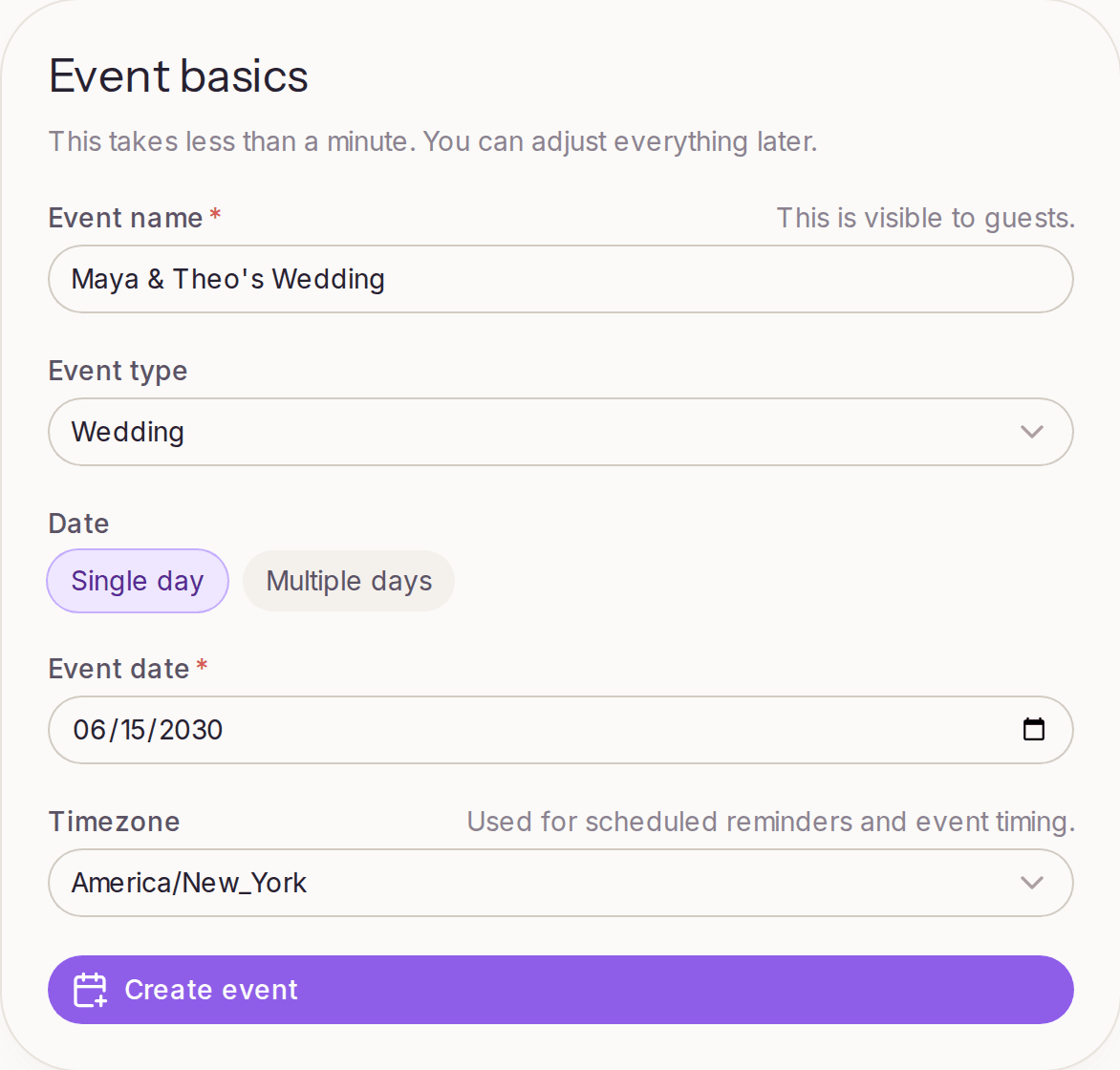
- Enter an Event name. Guests will see this, so use something they'll recognize, like "Maya & Theo's wedding weekend".
- Choose an Event type: Wedding, Party, Corporate, Birthday, Anniversary, or Other. Willa uses this to suggest the topics guests usually ask about.
- Pick Single day or Multiple days, then set the date or date range.
- Check the Timezone. Willa uses it for scheduled reminders and event timing.
- Select Create event.
If you're not signed in yet, you'll select Continue instead and create an account first. Your event details are saved, so you won't need to enter them again.
Teach Willa something right away
After you create the event, Willa asks you to add one thing so it can start learning. You can:
- Add detail: type anything Willa should know, like parking notes or the schedule.
- Import website: bring in details from a wedding website on Zola, The Knot, or Joy. This is available on Essential and up.
- Upload files: add schedules, PDFs, documents, or images.
Willa reads what you share, usually in 10 to 30 seconds, and shows you the topics it picked out. You can ask it a sample question to see how it answers.
If you'd rather explore first, select Skip for now to go straight to your event.
Find your way around
Each event has its own dashboard with these sections in the sidebar:
- Overview: how ready Willa is, and the questions guests are asking
- Event info: name, hosts, description, location, and dates
- Guests: All guests and Groups
- Messages: Announcements and Conversations
- Knowledge: Teach Willa and Test Willa
- Settings: guest access, texting, and event admins
Next steps
Your new event starts on the Free plan, which includes the web guest chat for up to 25 guests. Upgrade when you want guest texting and a dedicated number. See Plans and billing.
Then work through Get your event ready for guests.