
Create and use guest groups
Use guest groups like Wedding party or Out-of-town guests to share details with the right people and send announcements to just those who need them.
Last updated
Guest groups let you share some details only with certain guests, and send announcements to just the people who need them. For example, a Wedding party group can get rehearsal timing that other guests don't see. Guest groups are available on Signature.
Create a group
- Go to Guests > Groups.
- Select Add group.
- Enter a Name, like "Wedding party", "Family", or "Out-of-town guests".
- Add an optional Description to remind yourself who belongs in it.
- Select Add group.
Willa never creates groups for you. You decide which groups make sense for your event.
Add guests to a group
There are three ways:
- From the group: on Groups, select Manage members next to a group. Search for guests and select them, then select Done.
- From a guest: when you add or edit a guest, choose their Groups.
- When importing: include a Group column in your CSV. See Import your guest list.
A guest can be in more than one group.
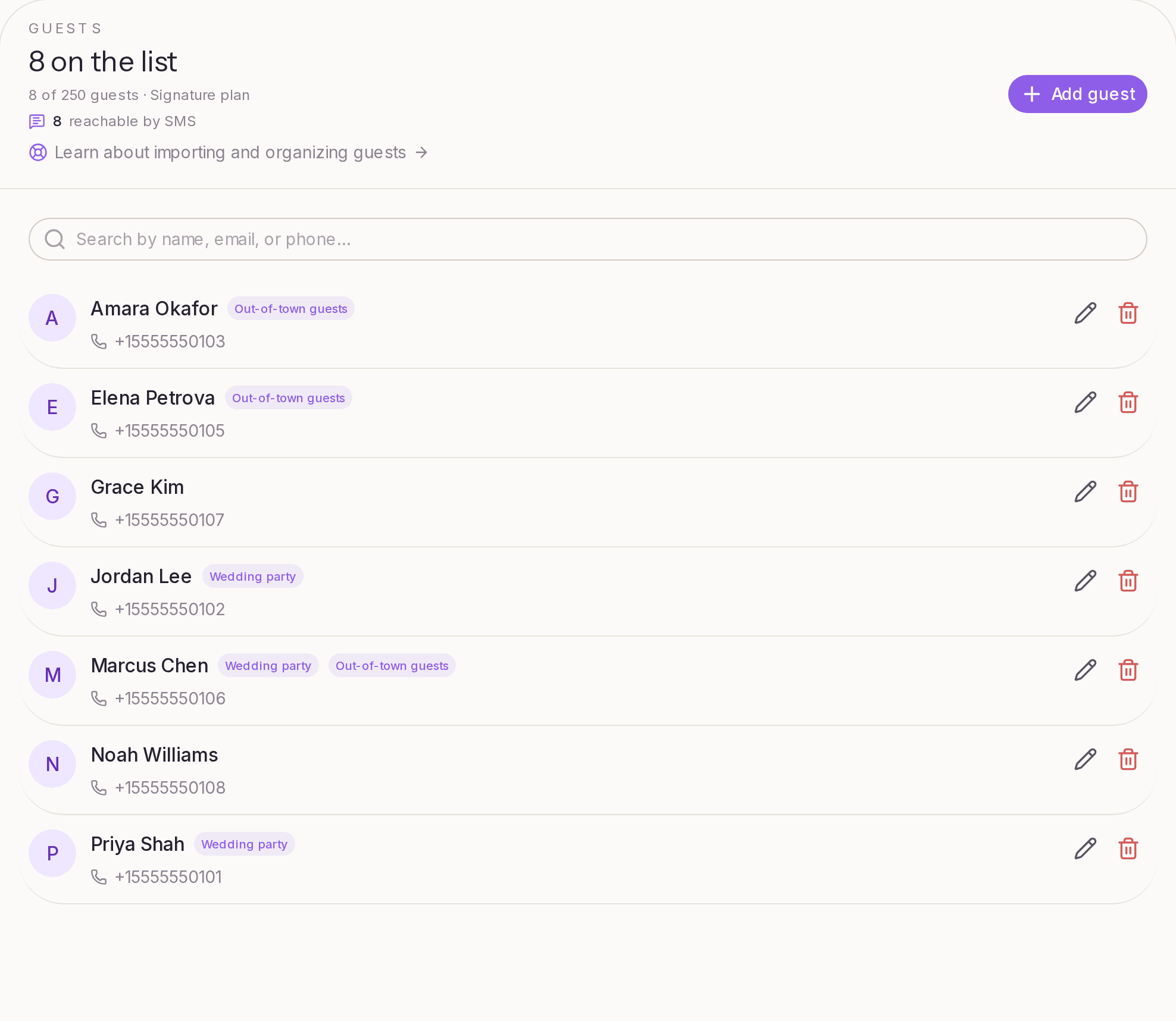
Share details with a group
When you add a detail or upload a file in Knowledge > Teach Willa, choose who it's Visible to:
- Everyone: Willa can share it with any guest.
- Specific groups: Willa only shares it with guests in those groups.
Willa recognizes guests by the email or phone number on your guest list, so group-only details only reach guests it recognizes. Someone texting from a number that isn't on your list only gets answers from information visible to everyone.
Send announcements to a group
When you create an announcement, choose Specific groups under Send to, and pick one or more groups. Guests in more than one selected group only get the message once. See Send announcements to specific groups.
Ideas for groups
- Wedding party: rehearsal times, getting-ready location, photo schedule
- Family: family photo timing, where to sit
- Out-of-town guests: hotel block, airport shuttle, welcome event
- Rehearsal dinner guests: the dinner's time and location
- Vendors or helpers: load-in times and day-of contacts
Edit or delete a group
On Groups, select the edit button to rename a group or change its description, or the delete button to remove it. Deleting a group doesn't delete its guests.
If you delete a group that a detail or file was limited to, check that detail's visibility in Knowledge so it still reaches the right people.
On Free or Essential
Groups are included with Signature. On other plans, the Groups page shows an Upgrade to Signature option. Everything you add is shared with all guests unless you keep it admins only. See Plans and billing.